1Online vs In-Person Tutoring
This guide covers the Reading Partners Connects digital curriculum for both online and in-person tutoring. Here's the difference:
Fully remote
You log in from home or another location and work with your student using video conferencing and the online curriculum.
On site
You come to the reading center in-person and tutor your student using the digital curriculum on a shared device provided by Reading Partners.
2Requirements for Online Tutoring
You can skip this section — a computer will be provided for you in the reading center.
To tutor online, you will need:
- A private desktop or laptop computer with a microphone and camera. (Unfortunately, tutoring on a tablet, iPad, or phone isn't currently possible.) See approved computer models and browsers, plus other technical support resources.
- A private space is preferred — we don't recommend using your device in a public space.
If tutoring from home isn't possible, and you must use a public space:
- Choose a space free of background noise and visual distractions during the session.
- Test the WiFi network in advance and make sure the bandwidth is high enough for a quality session (we recommend at least 20 Mbps).
- As a best practice, always connect to a protected network.
- Position yourself so someone not affiliated with Reading Partners can't readily see your screen.
- Lock your screen if you leave your computer unattended for any amount of time.
- Make sure virus scanning is installed and working on your device.
- Be sure your computer updates have been run recently.
- We recommend the Google Chrome browser. If you're having trouble accessing or logging in, try an incognito window and/or clearing your browser cache.
- You must be located in the United States when accessing the platform and delivering tutoring sessions.
- You're expected to have your camera on while tutoring.
3Preparing for Tutoring
Please note: Access to www.rpconnects.org won't be available until you've been paired with a student and scheduled to begin tutoring.
Registering your account
You'll tutor on a Reading Partners computer at the reading center, but it's still helpful to save this site on your personal device so you can preview lesson materials ahead of your in-person sessions.
- Once you've been paired with a student, your Reading Success Coach will invite you to register your account and create a username and password on the Reading Partners Connects platform.
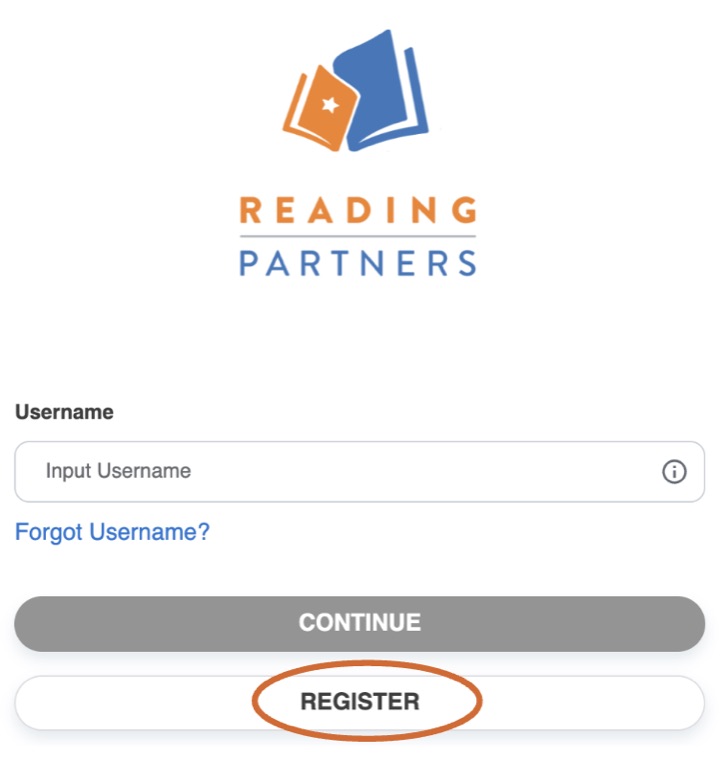
- Go to www.rpconnects.org and, instead of entering a username, click "Register." This is the same website you'll use to log in and tutor, so bookmark it for easy access.
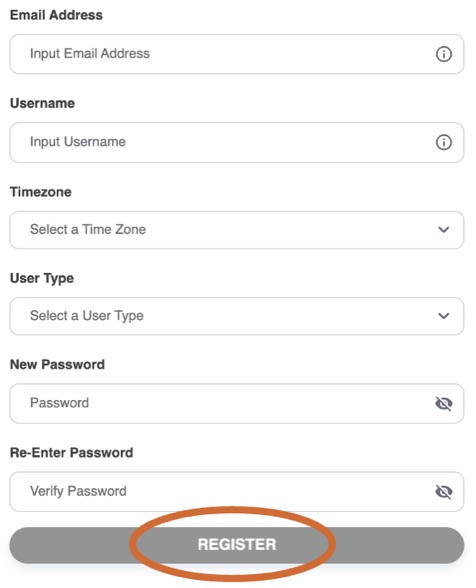
- Enter the email address you use for Reading Partners, choose a username, select your timezone, select "Tutor" as your User Type, and choose and re-enter a password. Save your username and password somewhere safe.
- Click "Register." You'll receive an email from noreplyrpconnects@readingpartners.org with a six-digit one-time password to enter and verify your account. Check your spam folder if you don't receive it.
- You can now return to www.rpconnects.org and log in with your username and password.
Note: An email address can't be used as your username, because certain characters (like periods) aren't allowed in usernames.
Forgot your username or password?
Forgot username
Go to www.rpconnects.org and click "Forgot Username?" Enter your email and user type (select Tutor). You'll get an email with your username.
Forgot password
Go to www.rpconnects.org, enter your username, click "Continue," then "Forgot Password?" Confirm your username and you'll get an email with a one-time password and the option to set a new one.
Logging in
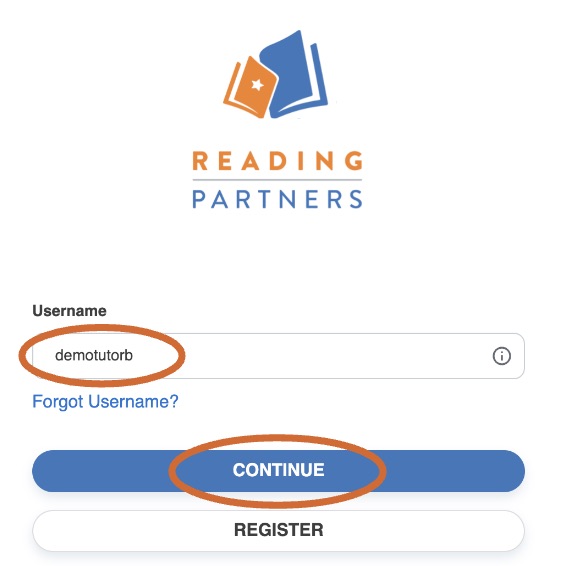
- Once your account is registered and verified, go to www.rpconnects.org, enter the username you created, and press "Continue."
- Enter the password you created and press "Login."
Previewing lesson materials
- Before tutoring, we recommend previewing lesson materials in your assigned curriculum level so you can practice delivering the content.
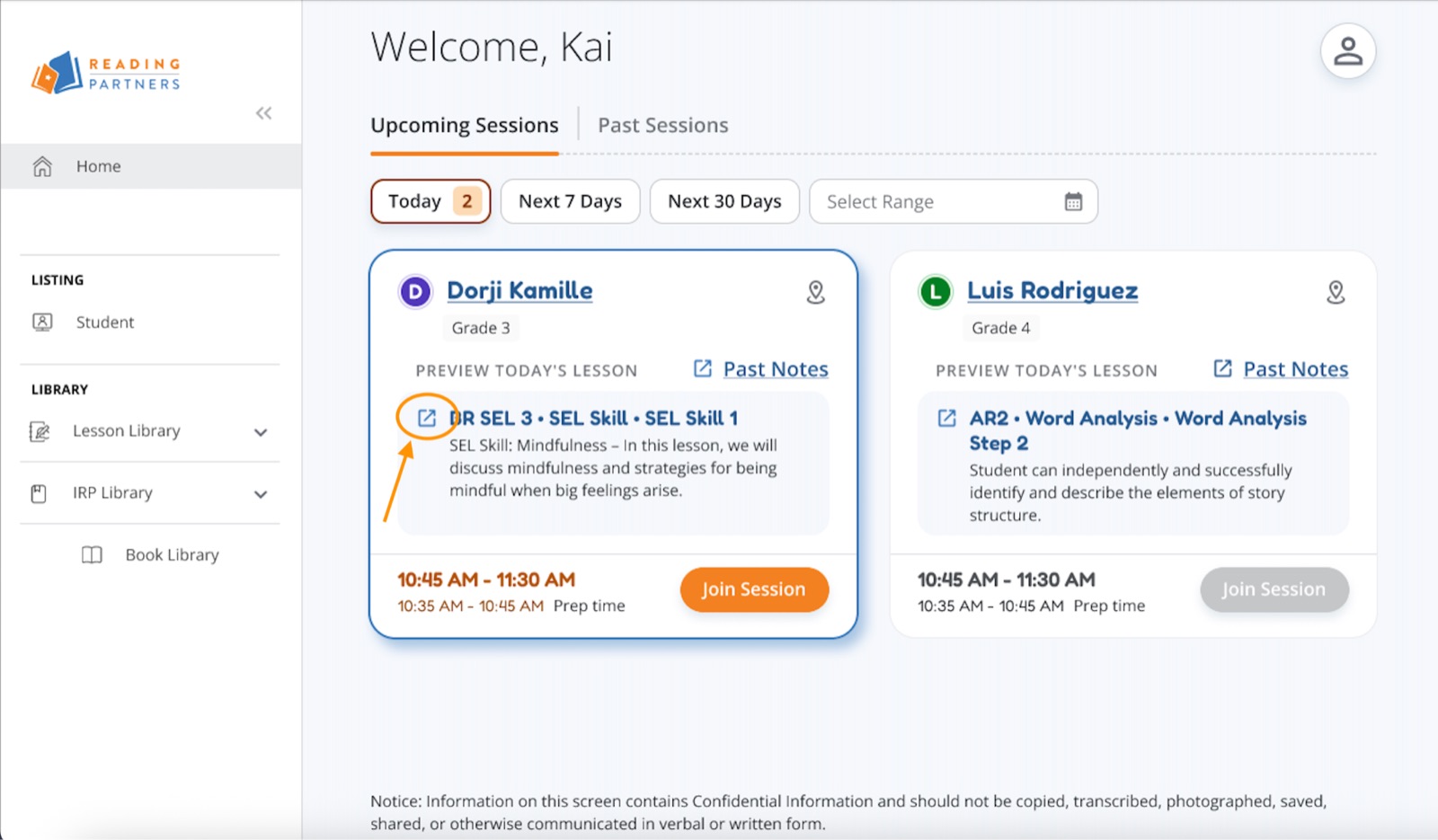
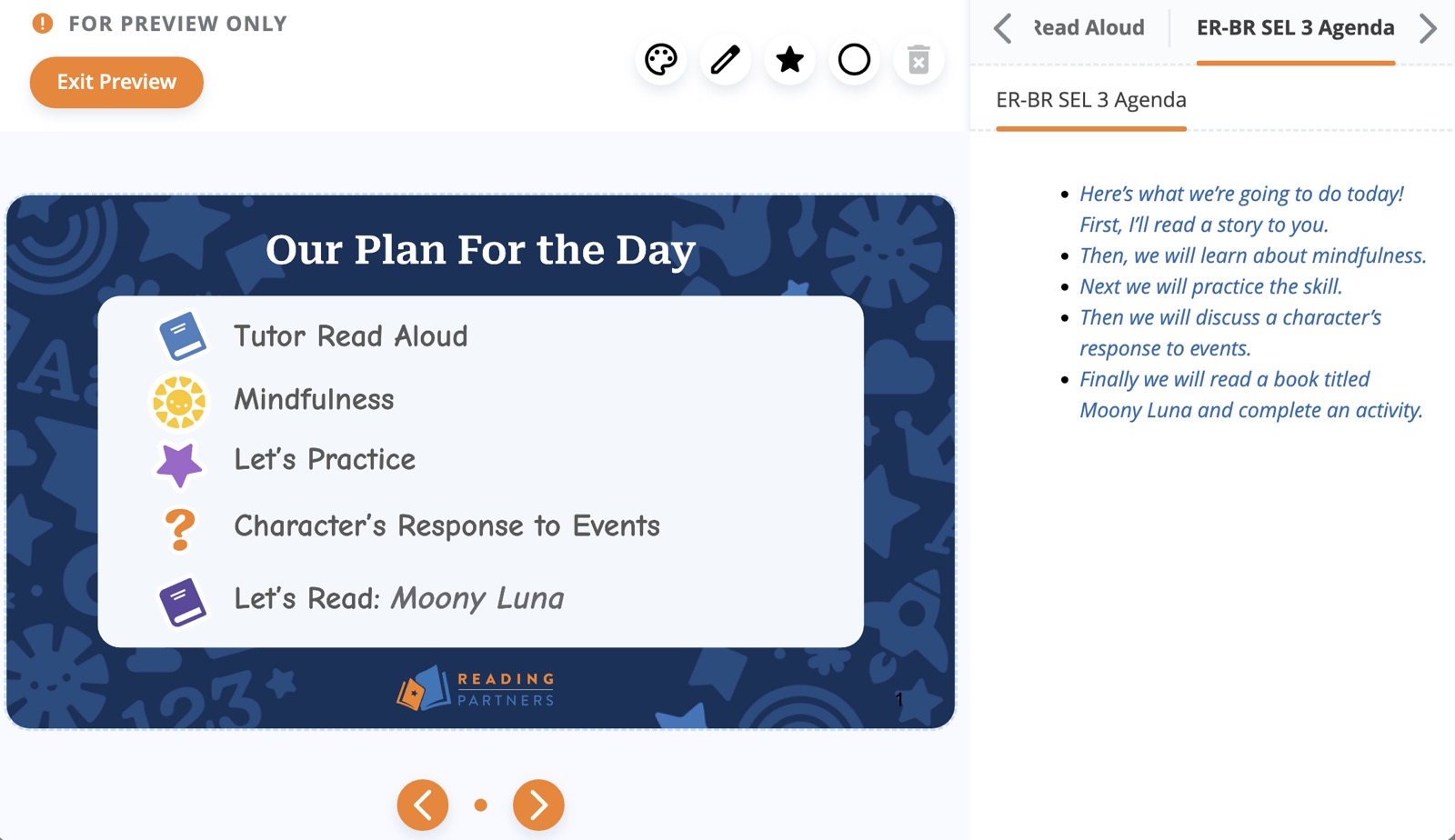
- Up to 24 hours in advance, review the materials in the Reading Partners Connects system (we suggest about 20 minutes each week). On your dashboard, use the Today, Next 7 Days, Next 30 Days, or Select Range filters to find an upcoming lesson, then click the preview icon next to the lesson name.
- To close the preview pop-up, click anywhere outside of it and you'll return to your dashboard.
- You can view all Reading Partners lessons sorted by curriculum level in the Lesson Library — click the notebook icon in the navigation bar on the left side of your tutor dashboard.
Important: Don't preview lesson materials any earlier than 24 hours in advance. Because some students have tutoring on back-to-back days, materials any earlier than that may not yet be up to date.
Reviewing previous session notes
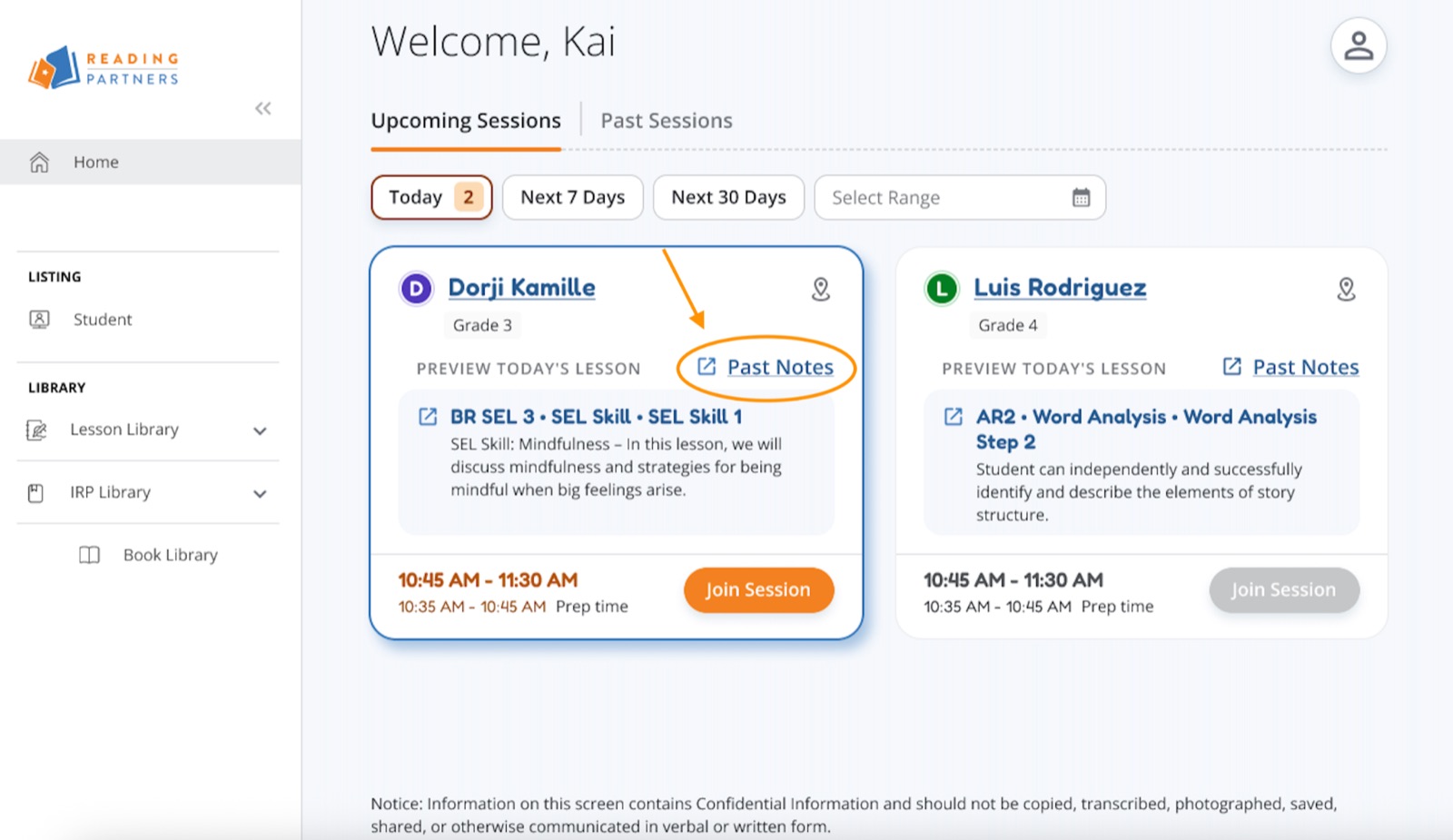
Review last session's notes before you begin. On your dashboard, find your student's card in Upcoming Sessions and click "Past Notes" to view session notes from previous sessions.
4Lesson Materials
Every lesson is built from the same four pieces. Here's what you'll be working with.
E-books
You'll access two e-books every online session. At the beginning of each lesson, the student selects an e-book for the tutor read-aloud portion. At the end of each lesson, the student reads from a pre-assigned e-book that corresponds with the lesson.
You may use a printed book for the tutor read-aloud, and the pre-assigned e-book for the student read-aloud.
Slides presentation
You present lesson material to students using slides embedded directly into the Reading Partners Connects platform.
Interactive toolbar
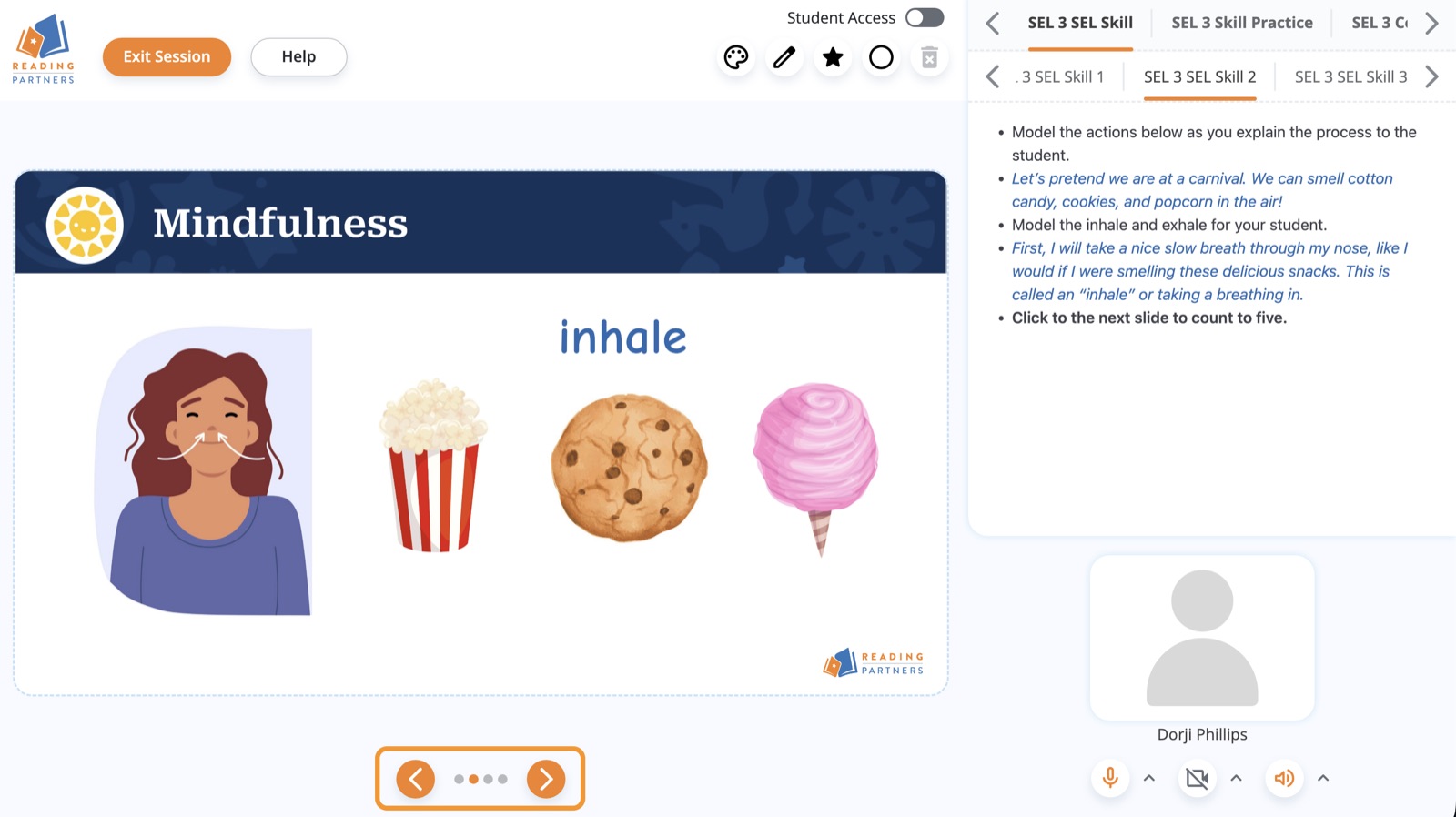
The interactive toolbar makes lessons more fun and engaging for the student.
- Student Access toggle (above the collaboration icons) gives or removes the student's access to collaboration tools. Give access when collaboration is part of the activity, and remove it when it isn't, so the tools don't become a distraction.
- Paint palette icon — choose the color of your annotations.
- Pen icon — draw on the screen.
- Star and circle icons — place a star or circle on the screen.
- Trash icon — remove all pen drawings and star/circle annotations on the slide at once.
Note: At this time it isn't possible to remove a single pen drawing or icon.
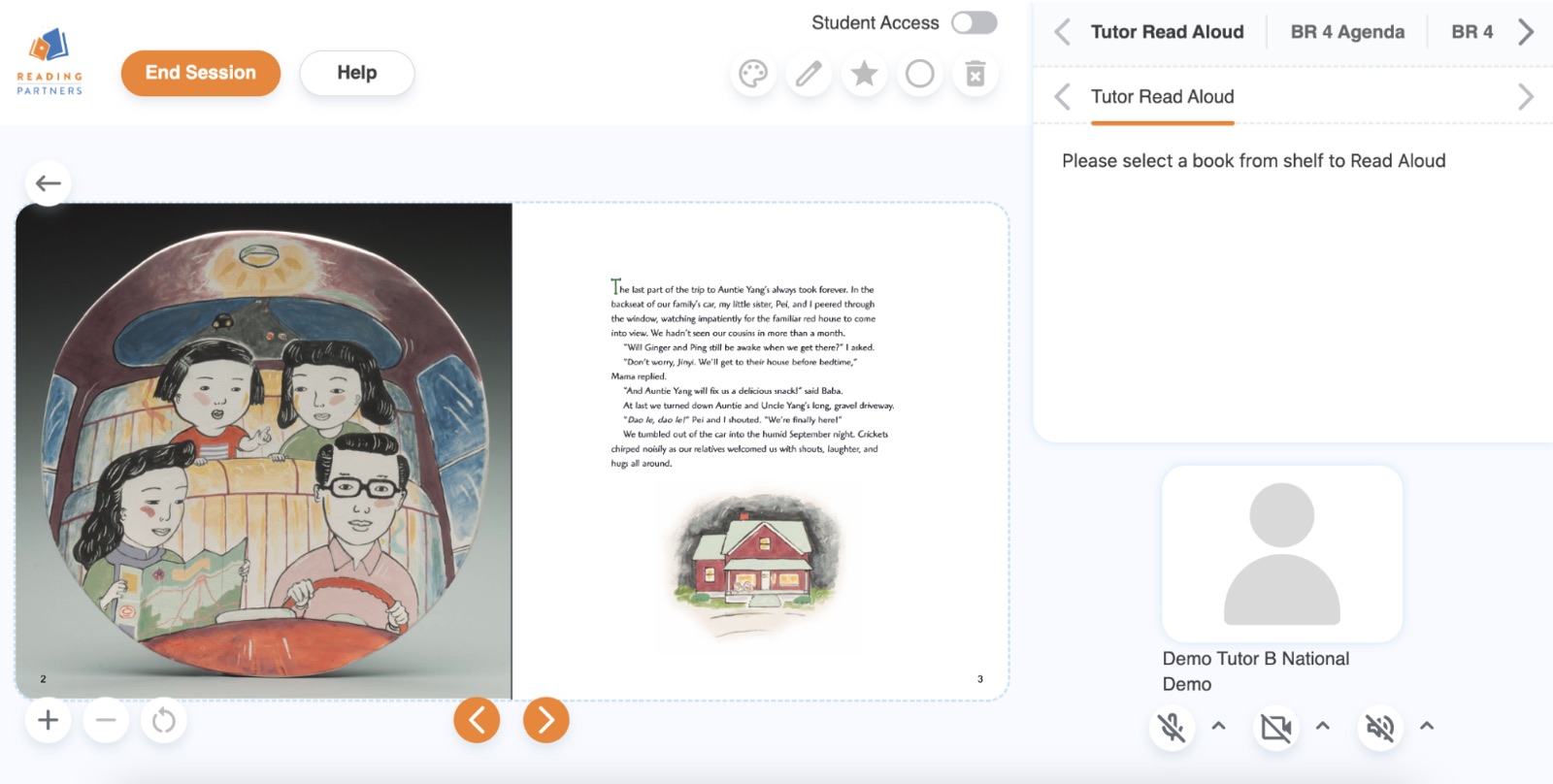
Since you'll sit next to the student and share one computer, the Student Access toggle doesn't apply.
Tutor guidance
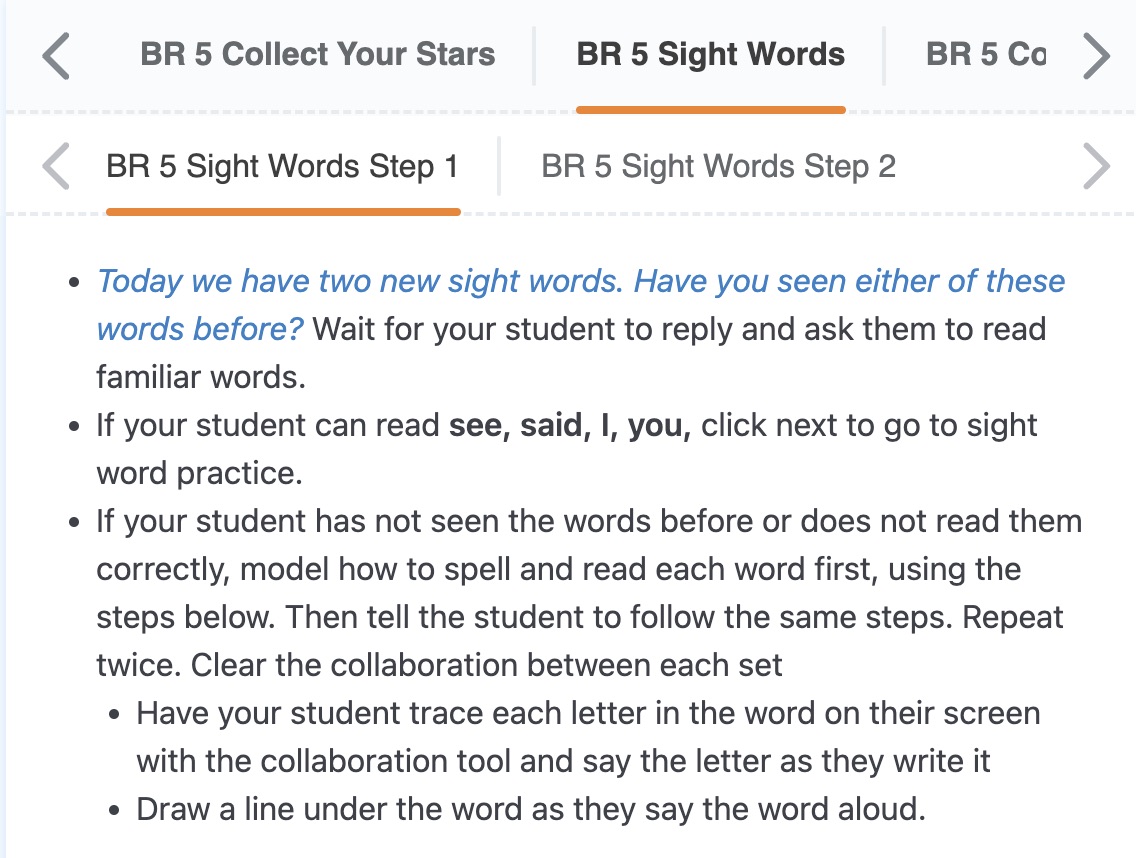
Tutor guidance provides a detailed, written script and instructions for moving through the slides. It's embedded directly into the platform for each slide and updates automatically as you advance from one slide to the next.
- Blue text is what you say out loud to your student.
- Black text gives instructions for you, the tutor.
5Delivering a Lesson
Take your time. You may not complete an entire lesson in one session — and that's okay! We work at the student's pace. Many lessons are designed to take 2–3 sessions. Just be sure to note where you left off so you can pick up there next time.
Lesson materials live in the Reading Partners Connects platform, and every lesson follows the same format. Here's how to join your session and deliver a lesson.
Preparing for the day's lesson
- Log in at www.rpconnects.org with your username and password. If you're tutoring online, get ready to be on video: make sure your background is blank, with no distracting or inappropriate imagery behind you.
- Click the "View" button (to the left of the Join button) to see where in the lesson you'll be starting. If you're starting in the middle of a lesson, note which section and step you'll begin at.
How sections & steps work: Sections are noted at the top of your tutor guidance, and steps appear directly below each section (there may be several steps per section). For example, "BR 5 Collect Your Stars" and "BR 5 Sight Words" are sections; a step beneath one of them would read "BR 5 Sight Words Step 1."
Joining your session
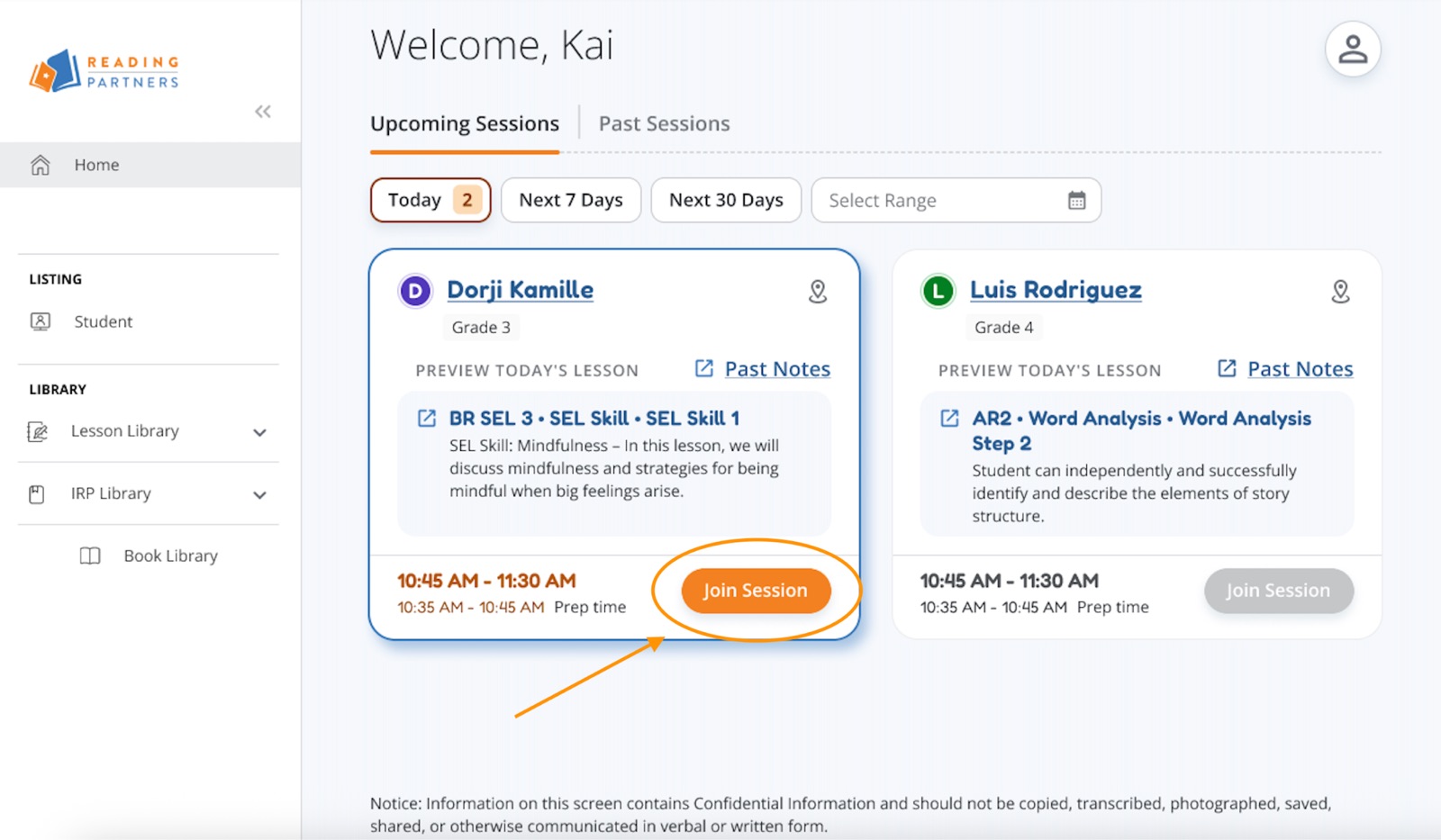
- In the "Upcoming Sessions" section of your dashboard, you'll see a "Join Session" button on the far right. At the start of your session's prep time, the button turns orange — clicking it launches your session in a new tab.
- Before the start time and after the end time, the Join button is gray and you won't be able to join.
- Lesson materials load automatically when you click Join. Before the student joins, use the navigation arrows to preview the content.
- For the best view, put your browser window in full-screen mode.
- Your Reading Success Coach will join before your session begins to check in and answer any questions.
Note (online tutors): You'll need to enable pop-ups in your browser for rpconnects.org so the session can launch. See instructions for Chrome or Safari.
Tutor read-aloud (first 5–10 minutes)
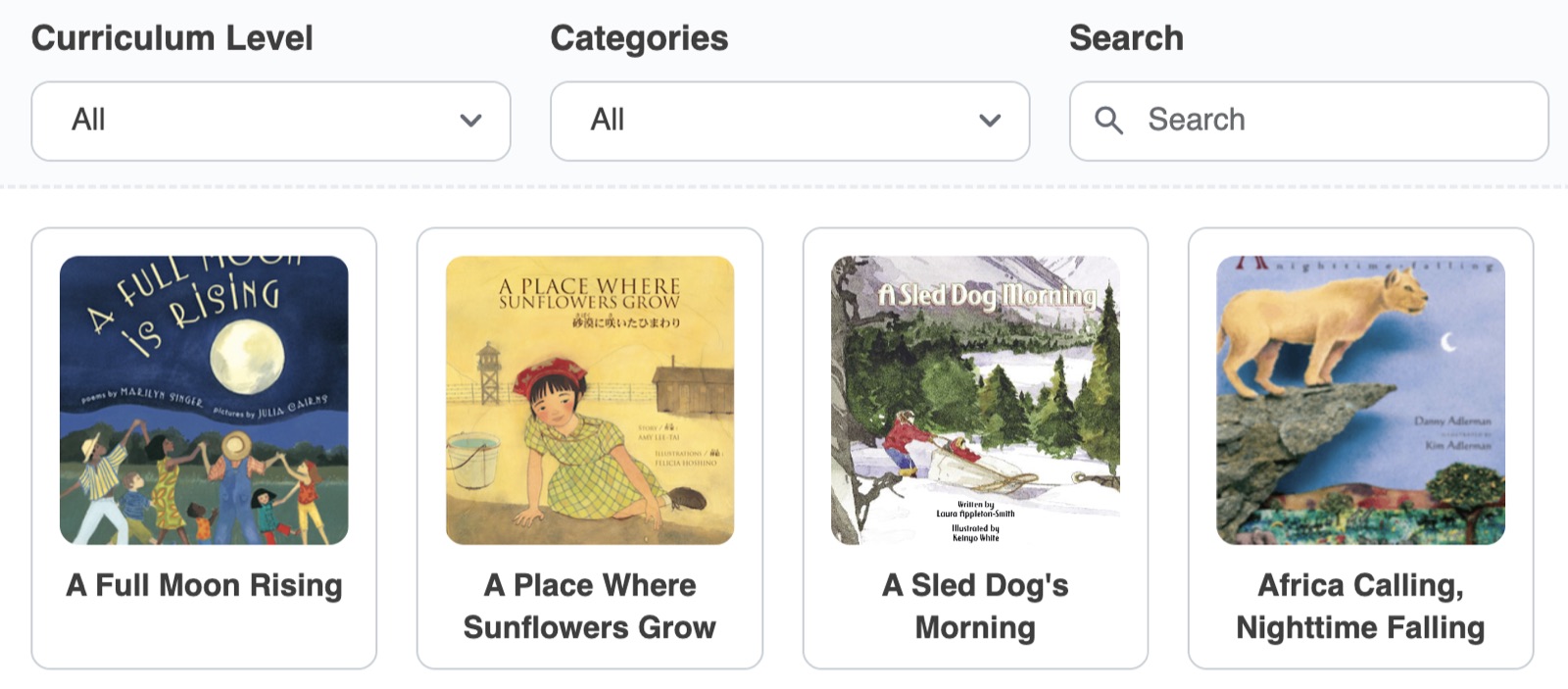
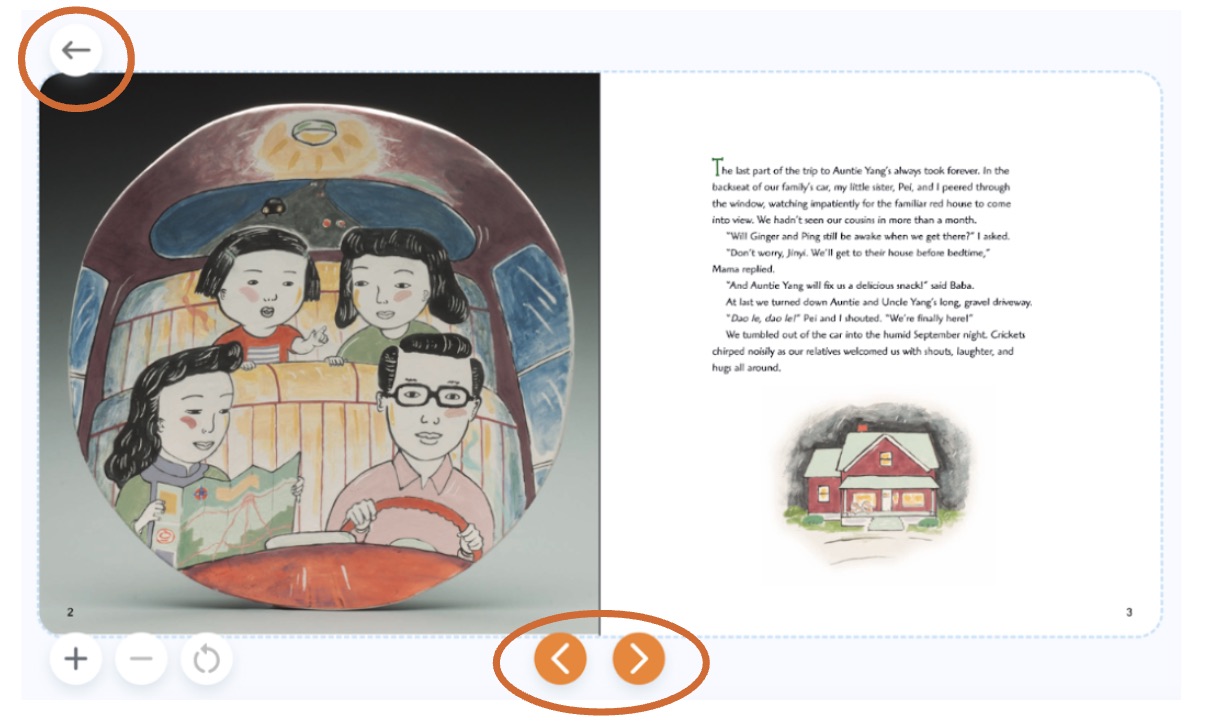
- For the first 5–10 minutes, you'll read aloud to your student. Online tutors read from an e-book of the student's choosing. In the Read Aloud Library, you can filter books by curriculum level or category based on student preference.
- To enlarge the book text, use the icons on the lower left to increase, decrease, and reset magnification. To turn the page, use the orange navigation arrows at the bottom. To select a different book, click the back arrow at the top left.
Skill instruction & student read-aloud (remaining time)
- The core of every lesson is diving into a specific skill you'll teach that day. Use the orange navigation arrows at the bottom to move through each section and step. If you're continuing a lesson from a previous session, navigate to the right section and step and continue from there.
- At the end of the lesson, your student reads to you from a pre-assigned e-book (or a reading activity for Emerging Readers) that corresponds to that lesson.
Transitioning to the next lesson
- Sometimes you'll finish a lesson with time still remaining, and you'll want to start the next lesson within the same session.
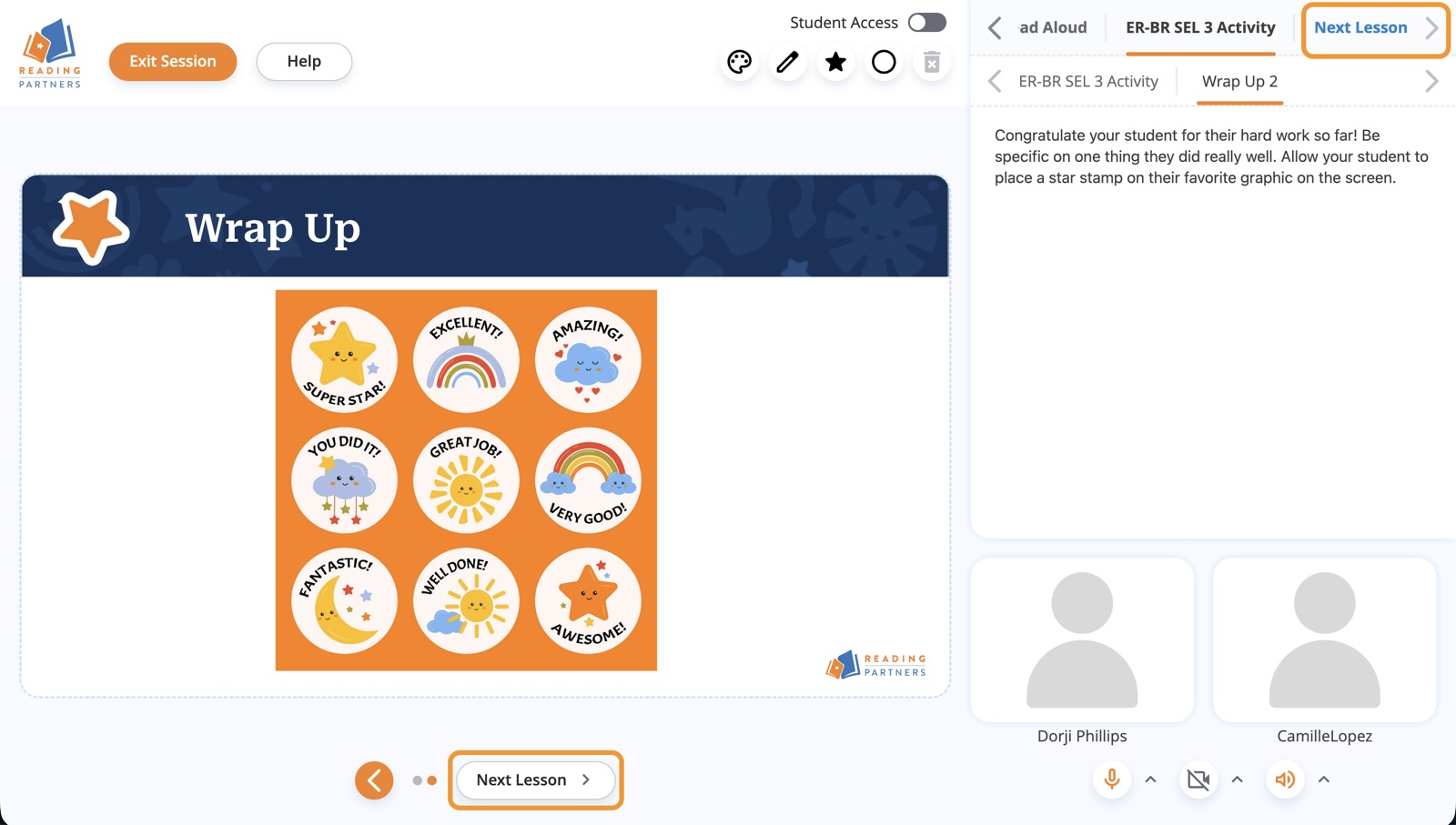
- When you reach the last section of the lesson, a "Next Lesson" button appears in the Section Navigation bar (top-right corner) and within the Step Navigation arrows (bottom center).
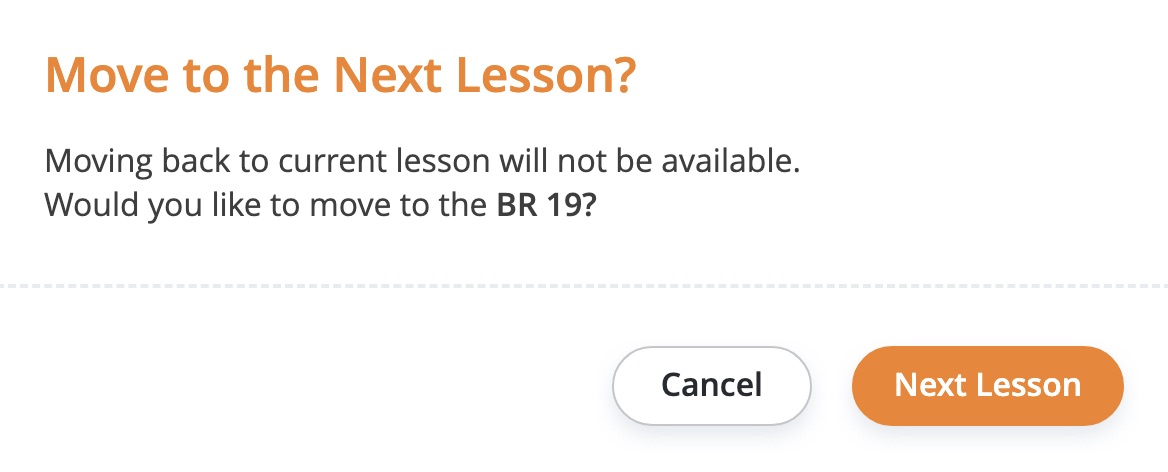
- Clicking "Next Lesson" from Step One shows a popup to confirm the transition. When you're ready, click the orange "Next Lesson" button in the popup.
Important: Once you transition into the next lesson, you can't revert back to the current lesson without help from your Reading Success Coach.
Ending the session
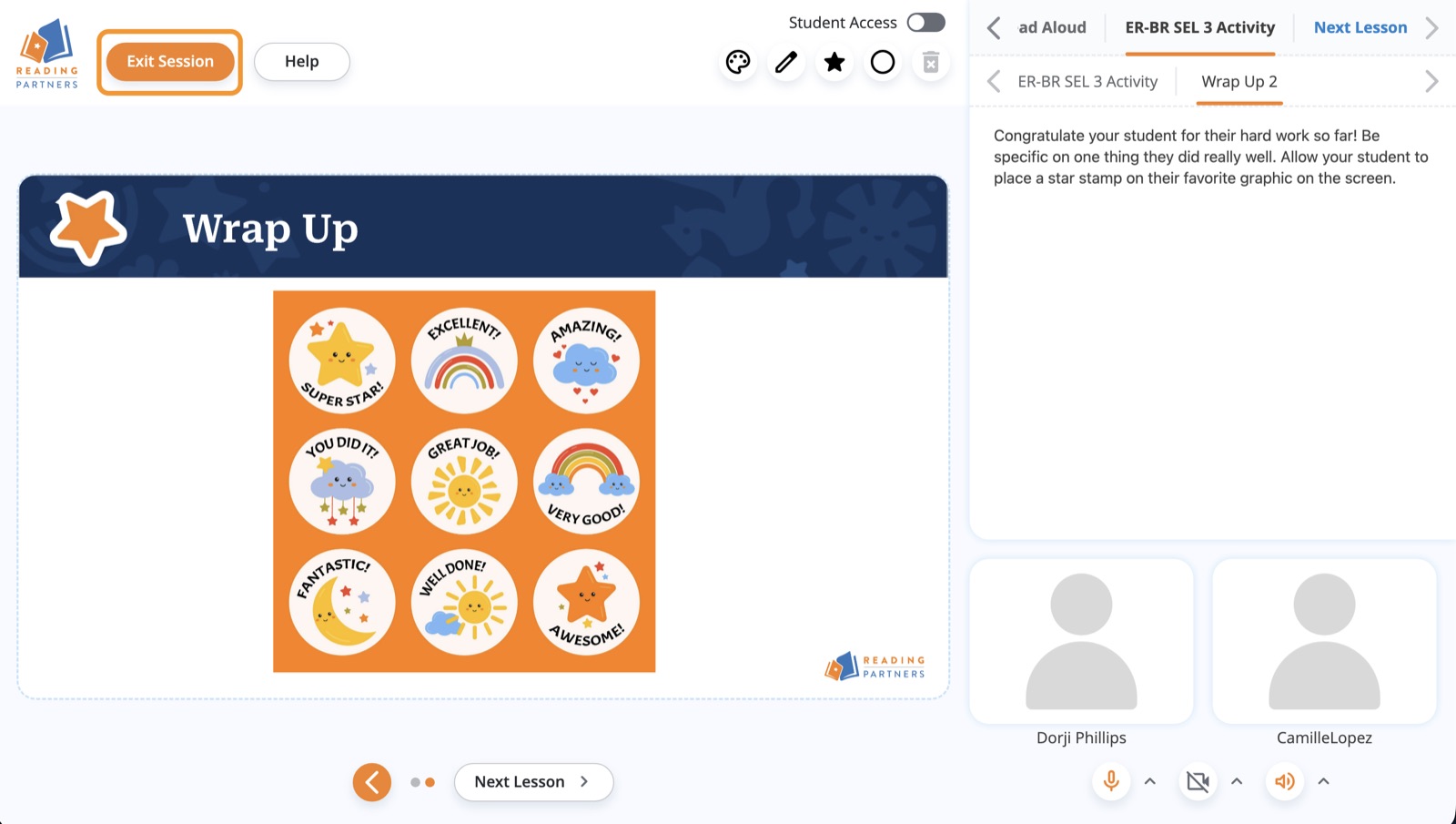
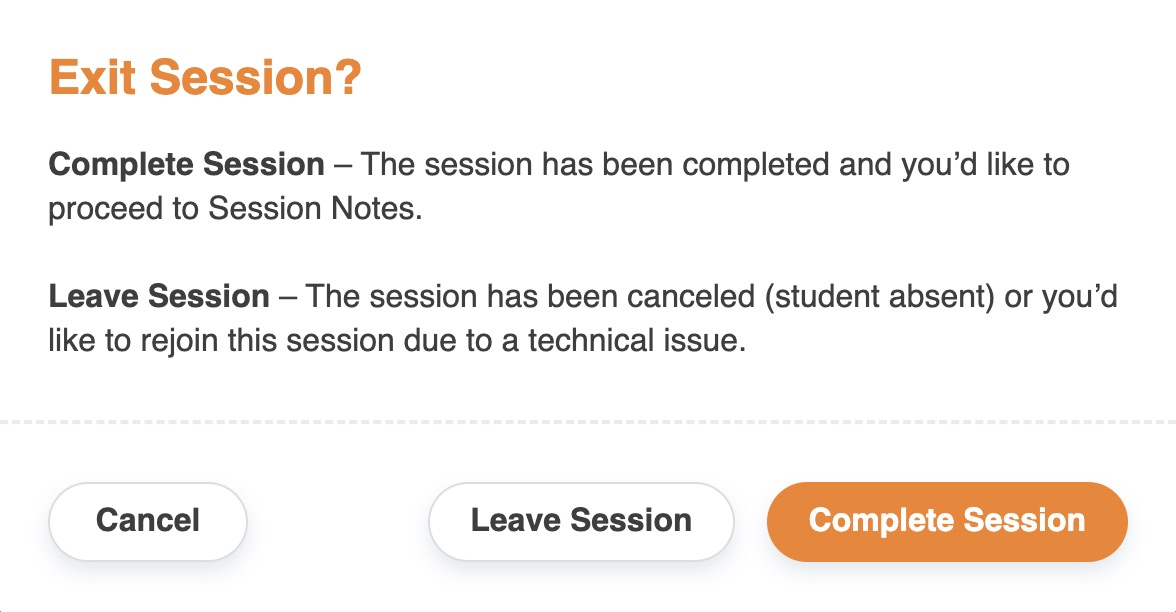
To end your session, click the exit session button in the upper-left corner of your screen. Sessions automatically end 15 minutes after their scheduled end time. Select the appropriate option to complete the session with your student, or to leave the session if it was canceled.
6After Tutoring
After you've ended your session, complete your session notes and follow up with your Reading Success Coach as needed.
Completing session notes
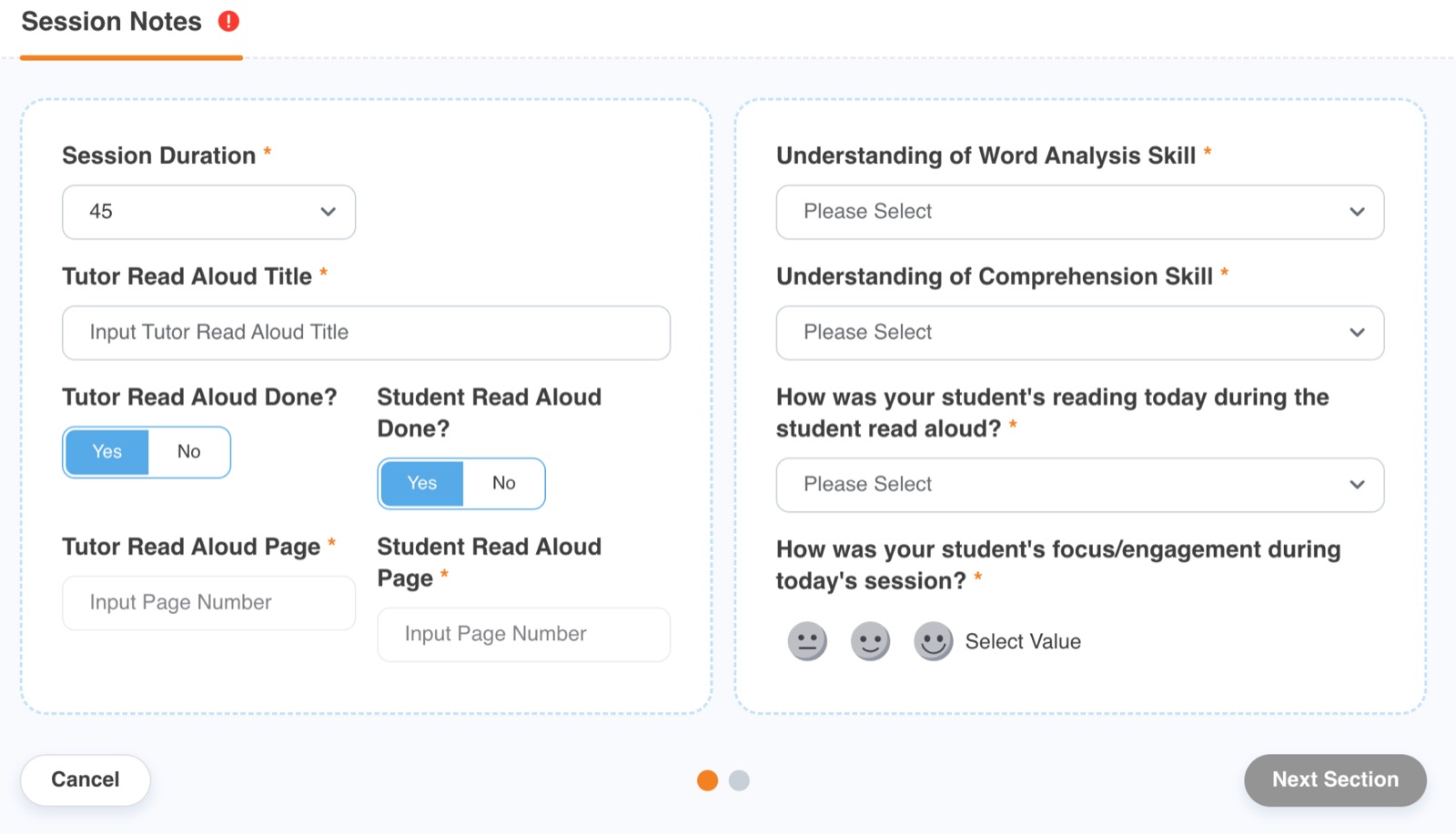
- You'll be prompted to provide session details, lesson details, and student feedback.
- Session notes must be completed for every session. If you accidentally close your window or tab, you can still access them until 15 minutes after the session end time: reopen www.rpconnects.org, click the "Join session" button again, then use the exit session button to end the session and bring up the notes.
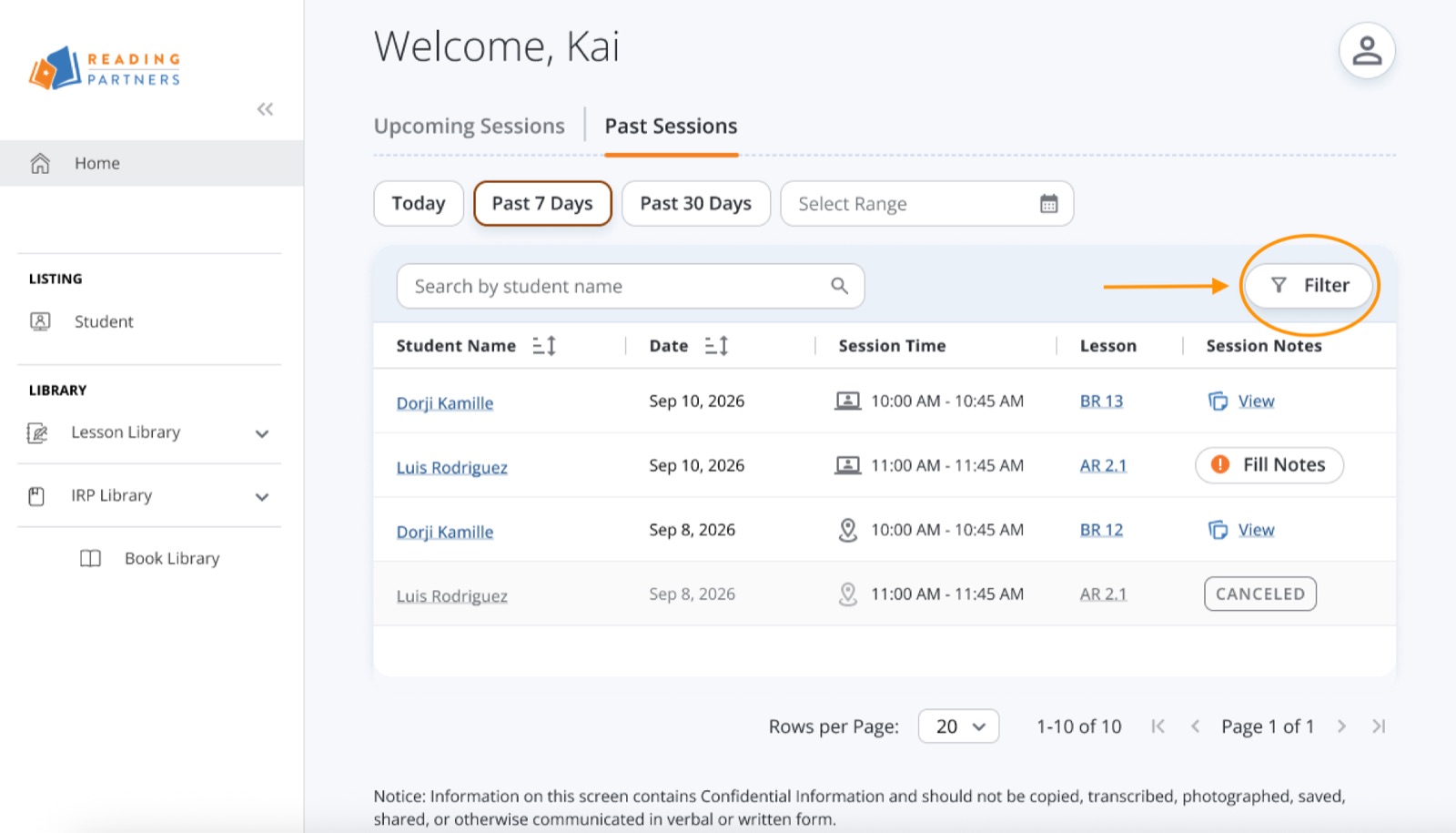
- If more than 15 minutes have passed, log in and click the "Past Sessions" tab on your dashboard. Choose a preset range — Today, Past 7 Days, Past 30 Days — or click "Select Range" to pick custom dates.
- Find the session in the table and click "Fill Notes" — sessions with incomplete notes show an orange icon; completed sessions show "View" instead. To find a session faster, click "Filter" above the table, check the box for completed or not-completed notes, and click "Apply."
Following up with your Reading Success Coach (as needed)
For any questions or concerns, email your Reading Success Coach. They're always available to provide support, and they'll join your sessions intermittently to offer hands-on coaching.
7In-Person Tutoring
In-person tutoring uses our Reading Partners Connects digital curriculum while you're on site with your student at the reading center.
Same as fully online
- Registering your account and logging in
- Navigating your dashboard and viewing upcoming sessions
- Previewing future materials (eye icon) and next-session info (view icon)
- Joining your session (join icon)
- Ending your session (exit session button)
- Completing session notes and reviewing past notes
Unique to in-person
- You're physically next to your student in the reading center
- Instead of the online read-aloud, your student may select a physical book from the reading center library
- You may use other learning tools, like a whiteboard, to enhance the experience
Session view (in-person)
- The upper-right corner of the screen lets you navigate between sessions and steps.
- Just like online tutoring, use the arrows at the bottom of the screen to navigate between slides.
- The in-person session view omits the video chat icons.
- Since you and the student share a device, you both use the same interactive toolbar — there's no toggle to control student access.
8Video Tutorials
Full demonstration videos
Topic-specific videos
- Registering and logging in
- Exploring your Tutor Dashboard
- Preparing for your session
- During your lesson (Online)
- During your lesson (In-Person)
- After your session
An Inside Look - Reading Partners Connects
A guided video tour of the Reading Partners Connects platform
Tutor FAQs
Still have questions? Answers to frequently asked questions are just a click away.
Open the Tutor FAQs